
UI Animation is the intentional use of motion within digital interfaces to communicate state, indicate relationships, and guide user behavior. When we design motion with purpose, interfaces become clearer: transitions reveal structure, animated feedback confirms actions, and subtle cues reduce uncertainty. This combination improves usability, efficiency, and overall user experience by making systems feel predictable and responsive.
We write this guide for engineering professionals, students, and educators across the United States who work at the intersection of motion design and interaction design. Our goal is practical: translate theory into techniques that product teams—designers, developers, and product managers—can apply in real projects and classroom settings.
Across the article we cover foundational theory on why motion matters, core principles like timing and consistency, and concrete patterns for microinteractions and navigation. We also address implementation: performance, accessibility, tools, and measurement. Throughout, we blend evidence-based best practices with inventive examples—reflecting our Sage-and-Creator voice and our mission to transform technical education through imagination and innovation.
Key Takeaways
- UI Animation communicates state and relationships to improve usability.
- Motion design makes interaction design feel more predictable and responsive.
- Practical techniques bridge theory and implementation for product teams.
- We emphasize timing, consistency, feedback, performance, and accessibility.
- Measuring impact ensures animations support real user experience goals.
Why motion matters in product design
We study motion as a tool that shapes perception and supports clear interaction. Thoughtful motion design turns static screens into a coherent flow. It helps users form expectations about where content appears and how actions resolve.
Research in cognitive psychology shows that motion captures attention through attentional salience. Moving elements draw the visual system faster than static items. This supports preattentive processing: users can spot changes before conscious evaluation, which speeds decision making.
Motion vectors — the direction and speed of animated elements — hint at causality and intent. A button that expands into a panel signals origin and outcome. This makes events easier to parse, reducing uncertainty about what a tap or click produced.
Psychology of motion and attention
We rely on simple rules: fast, contrasting motion grabs attention; subtle, predictable motion holds it. Designers at Google and Apple use these principles to prioritize notifications and guide focus without overwhelming the interface.
Animated cues work across scales: a microinteraction confirms a toggle, an animated transition links two screens. Both rely on the same human tendency to follow motion, which reduces the time needed to locate relevant information.
How motion guides user focus and comprehension
Motion creates spatial metaphors by showing where content comes from and where it goes. An expanding card implies growth, a sliding panel implies relocation. These metaphors map to mental models and make relationships explicit.
When we animate transitions, we reveal structure: hierarchy, grouping, and sequence. Users learn flow by watching elements move along expected trajectories. This improves comprehension of complex screens and multi-step tasks.
Reducing cognitive load with purposeful animation
Purposeful UI animation can lower cognitive load by chunking information and staging content. Progressive disclosure through motion keeps screens digestible and prevents abrupt context switches that force reorientation.
To reduce mental effort we recommend animating only elements that change state, keeping timing predictable, and avoiding decorative motion that competes for attention. Predictable motion frees working memory for task-relevant decisions.
| Design Goal | Motion Strategy | User Benefit |
|---|---|---|
| Attract attention | Use brief, high-salience entrance animations | Faster visual detection and response |
| Clarify relationships | Animate spatial transitions and motion paths | Improved comprehension of hierarchy and flow |
| Reduce cognitive load | Progressive disclosure with staged animation | Lower working memory demands during tasks |
| Signal intent | Consistent motion vectors to suggest causality | Stronger sense of action and outcome |
| Maintain usability | Limit concurrent movements; predictable timing | Less distraction; smoother user journeys |
Principles of effective motion design
We view motion as a language: precise, economical, and purposeful. Good motion design principles make interfaces feel alive and clear. They set expectations, reduce surprise, and guide attention without stealing focus.
Timing and easing for natural movement
Timing and easing shape how users perceive interactions. For microinteractions we recommend short durations: 100–300ms for taps and toggles. Contextual transitions should feel deliberate: 300–600ms for screen changes or object shifts.
Easing curves influence intent: linear suits steady motion, ease-in/out smooths entry and exit, cubic-bezier lets us craft personality. Choose a snappy easing for immediate feedback and a smooth curve for spatial continuity.
Consistency and system-wide motion language
Consistency reduces cognitive load. We build motion libraries that standardize durations, easings, and choreography across components. Teams at Google and Apple show how tokens and guidelines unify behavior.
Adopt tokens for timing and easing so buttons, modals, and lists behave predictably. Consistent motion strengthens brand signals and speeds developer handoff.
Feedback, continuity, and spatial relationships
Motion must communicate state. Use animation to confirm success, show errors, and indicate loading. Preserve continuity: keep object identity across transitions so users don’t lose context.
Favor animating perception-friendly properties: position, scale, and opacity. Avoid heavy layout changes like animating width on many elements; that causes jank and hurts performance. Choreograph movements so they don’t compete—stagger or prioritize when multiple elements move.
Practical rules we follow:
- Define a small set of durations: micro (100–300ms), medium (300–600ms), long (600–900ms).
- Pair intent with easing: sharp curves for alerts, soft curves for navigation.
- Animate identity-preserving properties and limit layout-reflow animations.
- Document patterns in a motion library to keep consistency and speed adoption.
UI Animation
We view motion as a language for interfaces: it explains context, confirms actions, and eases transitions. Good UI animation turns static layouts into responsive systems that guide users without words. Below we define core types, map common animation patterns to use cases, and share practical guardrails for balancing delight with utility.
Defining core motion types
Transitions move users between views: slide and crossfade show direction and spatial relationships. State-change animations show outcomes: toggles, checkmarks, and morphing icons confirm success or failure. Loading animations mask latency and set expectations: skeleton screens and progress indicators reduce perceived wait time. Microinteractions handle single, focused tasks: button presses and input validation give immediate feedback. Decorative motion adds personality but must not obscure function.
Common animation patterns and when to use them
Fade works for non-directional overlays and subtle reveals. Use slide for directional navigation or when you want to imply spatial movement. Scale and bounce emphasize small, momentary events like badge updates or call-to-action emphasis. Morphing icons work well for between-state toggles: they keep mental models intact while showing change. Skeleton screens and progressive loaders replace spinners when content structure matters.
Balancing delight and utility
We design motion that serves a purpose: reduce errors, explain outcomes, or speed comprehension. Delight is valuable when it reinforces brand and reduces friction. Keep guardrails: measure impact with A/B tests, limit duration and complexity, and align motion design with performance budgets. Always provide sensible defaults for reduced-motion preferences and ensure interaction design remains clear when animations are off.
| Pattern | Primary Use | When to prefer | Design tip |
|---|---|---|---|
| Fade | Overlay reveals, modals | Non-directional context shifts | Short duration, subtle easing |
| Slide | Navigation, panel movement | Directional flow or hierarchy change | Match direction to information flow |
| Scale/Bounce | Emphasis, notifications | Momentary attention without layout shift | Use sparingly to avoid distraction |
| Morphing icons | State changes (play/pause, menu/open) | Small controls with clear affordance | Preserve shape lineage for clarity |
| Skeleton screens | Loading structured content | When perceived speed and layout preview matter | Match skeleton to final content layout |
Microinteractions: small motions, big impact
We define microinteractions as brief, focused animations tied to a single user action or feedback loop. These moments appear on taps, toggles, inline validation, and like animations. Properly crafted microinteractions increase clarity, satisfaction, and perceived responsiveness in a product.
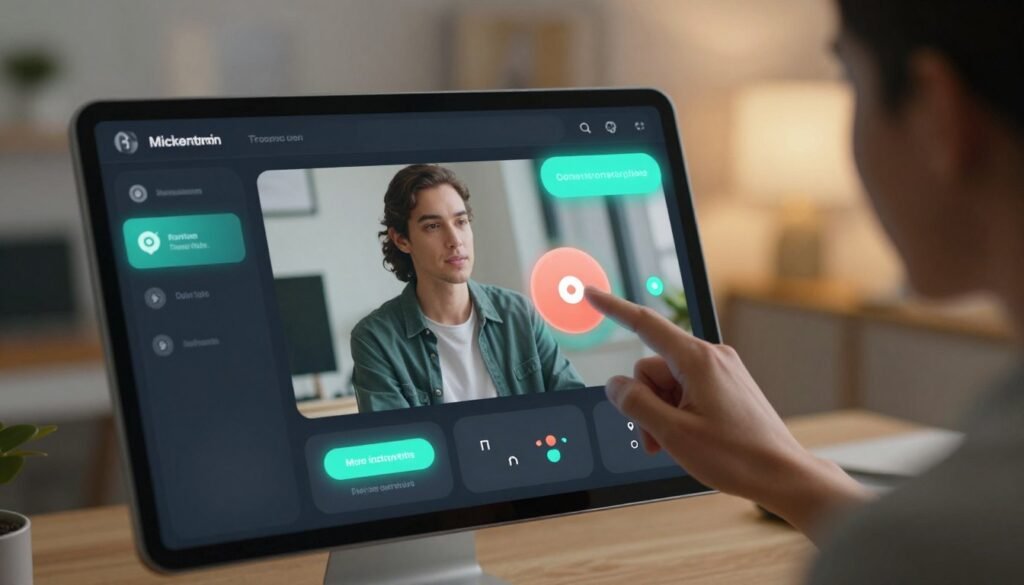
We group common microinteractions by role to guide design decisions. Each type solves a clear need and maps to interaction design goals.
Types and examples
- Buttons: press feedback, ripple effects, subtle scale to confirm action.
- Toggles and switches: smooth position shifts and momentum to signal change.
- Load and progress states: looping micro-animations and skeletons that show activity.
- Inline validation and success checks: brief confirmations that reduce uncertainty.
Designing for state communication
We design microinteractions to communicate idle, hover, active, disabled, success, and error states. Use combined cues: motion, color, and iconography work together to form clear state indicators. Motion should never be the only signal for critical conditions; color contrast and icons must back up animated cues for accessibility.
Patterns to follow
- Consistent timing: reuse easing and duration for similar controls.
- Compound signals: pair a small movement with a color shift and a concise icon.
- Graceful fallback: provide non-animated equivalents when reduced-motion is enabled.
Measuring effectiveness
We treat microinteractions as measurable product levers. Useful metrics include click-through rate, error reduction, time-to-comprehension, and subjective satisfaction scores from surveys. Track behavioral lift by comparing animated controls to static ones in controlled tests.
Testing approaches
- A/B testing: expose cohorts to animated versus static versions and measure task completion and error rates.
- Usability sessions: record time-to-first-understanding and capture qualitative feedback on perceived responsiveness.
- Iteration: refine motion based on data and maintain a shared motion spec for handoff to engineers.
We combine UI animation techniques with clear interaction design to turn small motions into meaningful state indicators. The result is interfaces that feel alive, reduce friction, and communicate intent with minimal cognitive load.
Motion design for navigation and spatial orientation
We design motion to keep users grounded as they move through an interface. Thoughtful transitions preserve context, reduce confusion, and support the mental map users build as they navigate. Clear rules for motion help teams deliver consistent spatial orientation across screens.
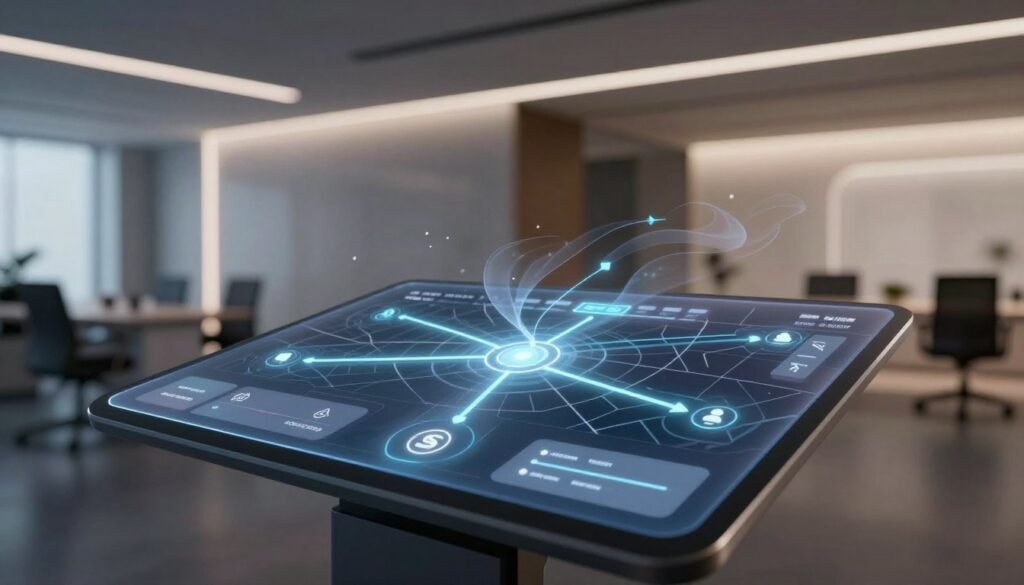
Transitions between screens and contextual continuity
Transitions link views so the user understands where content comes from and where it goes. Shared element transitions preserve object continuity: a photo or card grows into a detailed view, keeping attention on the same item.
Slide transitions suggest hierarchy and direction: left-to-right can mean moving forward, right-to-left can imply returning. Cross-fades work well for overlays and modal layers when spatial links are weak.
Animated breadcrumbs and progress indicators
Animated breadcrumbs and progress indicators show position in a journey. Subtle motion on a stepper or a progress bar signals completion and what remains. Incremental animations that map to tasks give users predictable feedback.
Use easing and small delays to emphasize state changes without distracting from primary content. When a multi-step flow updates, animate only the element that changed to keep attention focused.
Techniques for maintaining mental models
We favor techniques that reveal spatial relationships: animated reordering shows how lists change, parallax gives depth cues, anchor animations return focus to the origin of an action. These patterns help users form stable mental models.
Document motion rules in specs so developers and designers apply the same behavior across components. Consistent UI animation preserves expectations and makes complex interfaces feel coherent.
Interaction design and animated feedback
We use motion to make interfaces feel alive and to guide users through tasks. Thoughtful animated feedback helps people know an action succeeded, points out recoverable mistakes, and reveals what is interactive. This short guide shows practical patterns and accessible alternatives for designers and engineers.
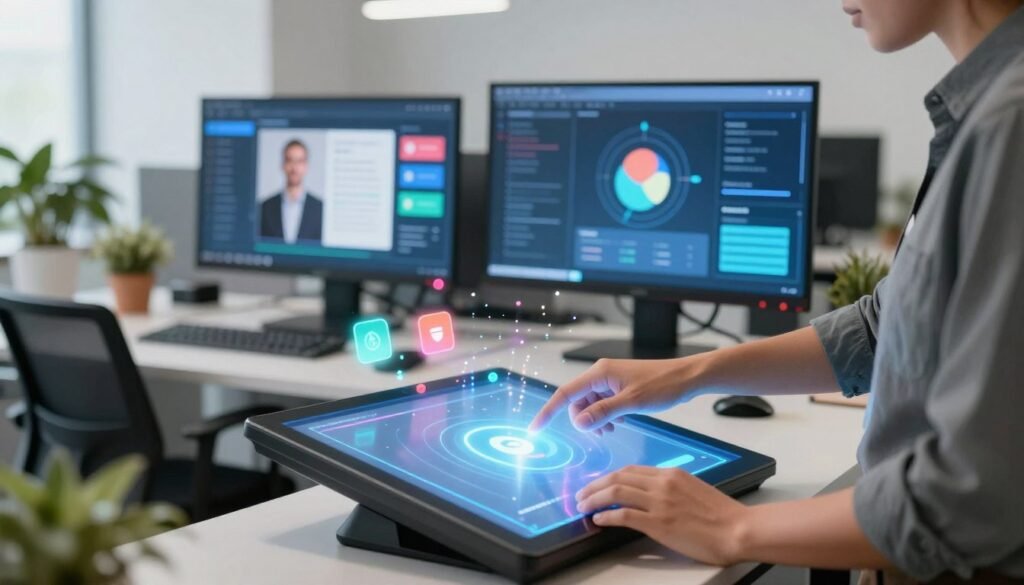
Using motion to confirm actions and prevent errors
Small, well-timed micro-animations act as confirmations: a checkmark that scales in after a form submit, a button ripple, or a brief color wash. These cues lower uncertainty and speed task flow.
For errors, subtle shakes or gentle red highlights call attention without panic. We design an undo affordance that animates into view after destructive actions so users can recover mistakes quickly.
Affordances and discoverability through animation
Animation can reveal what is tappable or draggable. Hover nudges, soft entrance motion, and animated outlines point to controls and drag targets. We avoid attention-hogging loops and instead use motion to suggest intent: a hint that fades when ignored.
When building affordances, match animation style to function. A quick, snappy motion implies immediate feedback. A slower, smooth reveal suggests a layered or persistent control. Consistency keeps the system predictable.
Accessible ways to present animated feedback
Motion should never be the only channel. We pair UI animation with text labels, clear color changes, and ARIA live regions so screen readers announce status updates. On mobile, haptic taps reinforce confirmations without extra visual motion.
Design for vestibular and reduced-motion preferences: respect the OS setting and provide static alternatives. Offer controls to toggle motion intensity, and ensure color contrast and timing meet accessibility needs.
| Goal | Animated pattern | Accessible alternative | When to use |
|---|---|---|---|
| Confirm success | Scaling checkmark + fade | Text label + ARIA live announcement | Form submits, saves, payments |
| Signal error | Input shake + color flash | Error message with focus + ARIA alert | Validation failures, permission denials |
| Reveal affordance | Hover nudge or slide-in cue | Persistent label or icon with keyboard focus styles | Hidden controls, drag targets, contextual menus |
| Offer undo | Snackbar animates up with action | Visible undo button and keyboard shortcut | Delete, archive, irreversible edits |
| Reduce motion load | Subtle easing and short durations | Static state mirrors motion outcome | Low-power devices, accessibility settings |
Performance considerations for animated interfaces
We design motion with usability and efficiency in mind. Strong animation can lift clarity and delight, but it can also tax devices and extend load times when misapplied. In this section we cover how animations affect system load, practical optimizations, and strategies to degrade gracefully on weaker hardware.
Impact on systems and user experience
Animations drive CPU and GPU work: rasterizing layers, compositing frames, and running JavaScript loops. High frame drops below 60fps produce visible stutter and make interfaces feel sluggish. Mobile devices are most sensitive: heavy motion can spike power use and shorten battery life while increasing perceived load times for content.
Practical optimization techniques
Prefer animating transform and opacity properties: these leverage compositing and often enable GPU acceleration. Use CSS animations and transitions or the Web Animations API for native compositing paths instead of expensive layout-triggering changes. Apply will-change sparingly to hint the renderer, but avoid leaving it on permanently; too many promoted layers increase memory pressure.
When SVGs are required, simplify paths and reduce DOM nodes so browsers can animate shapes faster. For JavaScript-driven motion, use requestAnimationFrame to align with the browser render loop. Offload heavy computations—such as physics or complex math—to Web Workers so the main thread stays responsive.
Balancing GPU acceleration and memory
GPU acceleration speeds animations but comes with trade-offs: more VRAM and texture memory usage can push devices into thrashing. Test on a range of hardware: modern desktops, mid-tier Android phones, and older iPhones. Measure frame rates, CPU/GPU utilization, and battery drain to find a stable sweet spot for performance and visual fidelity.
Fallbacks and graceful degradation
Detect reduced CPU or GPU capacity and scale back nonessential motion. Offer static or simplified states in CSS that substitute for rich transitions when capabilities are low. Respect prefers-reduced-motion media queries to provide less motion for users who ask for it.
Design progressive enhancement so core interactions work without animation. For example, replace complex entrance sequences with a simple fade or instant reveal on constrained devices. Keep key affordances visible and test flows with animations off to ensure functionality remains clear.
Implementation checklist
- Animate transforms and opacity first to leverage GPU acceleration.
- Use CSS animations or the Web Animations API for native compositing paths.
- Limit will-change to short-lived windows around active animations.
- Simplify SVG geometry and reduce DOM nodes for faster rendering.
- Use requestAnimationFrame and Web Workers for heavy JS-driven motion.
- Provide CSS fallbacks and honor prefers-reduced-motion to protect battery and reduce load times.
Accessibility and inclusive motion practices
We design motion to help users, not to hinder them. Thoughtful UI animation must respect individual needs and system settings. That starts with built-in controls and clear alternatives so everyone can interact with products comfortably.

Implement the CSS media query prefers-reduced-motion to detect when users opt for less motion. Mirror that setting with platform controls in macOS, Windows, iOS, and Android so motion settings remain consistent across apps. When a user requests reduced-motion, switch to simplified transitions, fade-only effects, or static states rather than removing essential signals.
Providing alternatives for motion-driven information
Never rely on motion alone to convey meaning. Add redundant cues such as clear text labels, icons, and color changes to communicate state. Use ARIA live regions and role attributes to expose status updates for screen readers. For complex flows like transaction progress, present explicit textual progress and timestamps alongside animated indicators.
Testing animations with assistive technologies
Validate experiences with VoiceOver on macOS and iOS and NVDA on Windows. Confirm keyboard focus order and tab stops remain logical when animations are reduced or disabled. Include switch-access and dwell-test scenarios to cover motor differences. Run usability sessions with participants who have vestibular or visual impairments to observe real-world responses and record findings in motion specs.
We document motion guidelines in design systems: listing when to honor reduced-motion, describing fallback behaviors, and providing code snippets for developers. This process supports inclusive design and strengthens accessibility across platforms.
Tools and frameworks for building UI animations
We choose the right tools to turn motion concepts into reliable interfaces. Picking between declarative and programmatic approaches affects performance, control, and handoff clarity. Below we outline native techniques, proven JavaScript options, and practical design-to-development tools that streamline delivery of polished motion.
Web-native techniques
CSS animations and CSS transitions are ideal when motion is simple and state-driven. They keep code declarative, use GPU acceleration for smooth effects, and reduce JS complexity. Use CSS for hover states, microinteractions, and entrance/exit effects that follow a predictable lifecycle.
The Web Animations API adds scriptable control without leaving the browser’s optimized engine. It fits cases that need precise timing, pause/resume, or dynamic timelines. Choose CSS animations for ease and maintainability; pick the Web Animations API when you need programmatic sequencing or runtime adjustments.
JavaScript libraries and frameworks
GreenSock (GSAP) excels at high-performance, complex sequences. Teams use it for timelines, SVG morphs, and physics-style interactions when pixel-perfect control matters.
Framer Motion integrates tightly with React and offers a declarative API that maps well to component state. It reduces boilerplate for shared element transitions and coordinated motion across components.
Lottie lets designers export After Effects animations as JSON for lightweight playback. It bridges motion design and production when vector fidelity matters.
Anime.js provides a compact API for timelines and staggered effects. It suits projects that need versatility with a smaller learning curve than some heavy frameworks.
Trade-offs to weigh include bundle size, runtime cost, and the team’s familiarity with each option. Some animation libraries add kilobytes and complexity but save development time on advanced interactions.
Design-to-development handoff
Figma is the central hub for motion specs and prototyping. Use Figma’s motion features and annotated frames to communicate timing, easing, and state changes.
Adobe After Effects serves for craft-level motion. Export animations with Bodymovin to produce Lottie JSON. This workflow preserves designer intent for vector and complex easing.
Zeplin and Figma Inspect provide style tokens, numeric values, and CSS snippets for smooth implementation. Share JSON-based motion tokens and annotated storyboards so engineers can reproduce timing and brand motion precisely.
We recommend pairing motion tokens with example code: a CSS snippet for common transitions, a Web Animations API sample for programmatic sequences, and a Lottie player demo for vector scenes. This combination reduces ambiguity, speeds development, and keeps interactions consistent across platforms.
Design workflow: from concept to implementation
We map motion to goals before drawing a single frame: reduce errors, speed task flows, or boost engagement. User research and job-to-be-done interviews reveal where motion adds value. Scenario mapping helps us prioritize which transitions and micro-movements matter most to real users.
We break work into clear steps so teams move fast without guessing. Storyboarding captures intent at a glance: entry and exit states, key poses, and contextual triggers. That visual plan keeps designers, product managers, and engineers aligned early in the process.
Research and defining animation objectives
Start with measurable objectives: aim to lower error rates by X, cut task time by Y seconds, or increase activation by Z percent. Frame each animation as a hypothesis tied to those metrics. Run lightweight interviews and usability tests to validate the hypothesis before prototyping.
Storyboarding and motion specs for developers
Create storyboards alongside timing sheets and easing charts. Export developer-ready motion specs: durations, delays, cubic-bezier values, property lists, and keyframes or Lottie JSON. Include exact numeric values so engineers can implement without guesswork.
Version motion elements inside the design system. Track changes to motion specs so animations evolve predictably across releases. Store examples and rationale so future designers know why a given easing or duration was chosen.
Iterative testing and analytics-driven refinement
Prototype in-browser and on device labs to catch performance quirks early. Instrument events for task completion, error rates, and frame-rate logs. Pair quantitative signals with short qualitative sessions to understand how users perceive motion.
Run A/B tests to validate whether a new UI animation lifts the target metric. Use the results to refine timing, reduce distractions, or remove motion that harms usability. Repeat the cycle until the motion workflow meets both user needs and engineering constraints.
Measuring the impact of motion on usability
We measure motion by linking design intent to clear outcomes. That starts with defining what success looks like, instrumenting prototypes and products, and running focused user testing to observe real behavior. A blend of metrics and human insight gives us confidence when we tune timing, easing, or animation scope.
Key metrics: task completion, time on task, error rates
Primary KPIs should include task completion rate, time on task, and error frequency. Track funnel drop-off to spot where animated flows lose users. Add subjective scores such as the System Usability Scale (SUS) and Net Promoter Score (NPS) to capture perceived delight and clarity.
Combine raw counts with rate-based views: success per attempt, median time-on-task, and error types by severity. These usability metrics reveal whether motion improves performance or just adds polish.
User testing approaches for animated flows
We recommend moderated usability testing when you need rich context and probing. Prototype-based sessions let participants interact with real animations while we observe decision points and hesitation.
Remote unmoderated tests—using platforms like UserTesting or Lookback—scale well and capture time-based metrics at larger sample sizes. Scenario-driven tasks are essential: ask participants to complete actions that rely on animation to communicate state or direction.
Quantitative and qualitative analysis methods
Event tracking and motion analytics give quantitative signals: interaction timestamps, animation-triggered events, and heatmaps of where users pause or click. Use these to power A/B tests that isolate UI animation measurement.
Complement numbers with qualitative artifacts: think-aloud transcripts, interview notes, and session recordings. Triangulate results rather than relying on a single datapoint. For A/B testing, calculate sample sizes up front and adopt common significance thresholds to avoid false positives.
When we combine analytics, structured user testing, and clear usability metrics, we build a repeatable process for assessing the real impact of motion on user experience.
Common pitfalls and how to avoid them
We see teams eager to add motion, aiming to delight users. That energy can backfire when motion becomes noise. This section lists common motion pitfalls and gives clear remedies you can apply during design and development.
Symptoms include slower task completion, rising error rates, and more user complaints. These UI animation mistakes often stem from treating decorative motion as essential. Start by auditing every animation: mark which ones serve a function and which ones are purely ornamental.
Next, prioritize functional animations that guide attention or communicate state. Remove or tone down decorative effects that do not improve clarity. Use short, subtle transitions for repeated actions to limit cognitive load.
Inconsistent timing and competing animations
Mismatched durations and easings break mental models and feel unstable. Competing high-salience animations can overwhelm users when multiple elements move at once. Establish a motion token system with standard durations, easings, and delay rules.
Create choreography guidelines so only one primary animation runs at a time in a given view. Treat secondary motions as accents with lower contrast. Document these rules in your design system for designers and engineers to follow.
Ignoring performance and accessibility constraints
Neglecting performance causes jank and drains battery on mobile devices. Ignoring accessibility leads to exclusion for users who prefer reduced motion. Both outcomes harm product trust and adoption.
Adopt a simple checklist: respect prefers-reduced-motion, test on low-end Android devices and older iPhones, instrument frame rate during critical flows, and profile battery impact when possible. If an animation pushes FPS below acceptable bounds, replace it with a lighter alternative or a static affordance.
Use the table below to compare common UI animation mistakes, their user impact, and a practical fix you can apply today.
| UI animation mistakes | User impact | Practical fix |
|---|---|---|
| Excessive decorative motion | Increased cognitive load; lower task efficiency | Audit animations; remove non-functional effects; limit repetition |
| Inconsistent timing and easing | Broken mental models; perceived sloppiness | Define motion tokens; enforce system-wide durations and easings |
| Multiple competing animations | User distraction; reduced comprehension | Choreograph views so one primary animation leads |
| Unoptimized heavy animations | Jank, slow load times, battery drain | Use GPU-accelerated properties; test on low-end devices |
| Ignoring reduced-motion preferences | Accessibility barriers; exclusion of some users | Honor prefers-reduced-motion; provide non-animated alternatives |
| No instrumentation for motion | Blind spots in performance and usability | Measure FPS, task times, and error rates for animated flows |
Case studies: successful motion-driven interfaces
We examine real products to learn how motion shapes understanding and trust. These motion case studies focus on onboarding flows, transactional feedback, and patterns that teams can adapt. Each example shows the mechanics behind a decision and the measurable effect on users.
Slack uses progressive reveal to teach features without overwhelming new users. Guided animations highlight controls in sequence, while interactive demos let users try actions in context. This onboarding animation reduces time-to-first-success by building a clear mental model through stepwise exposure.
Duolingo blends gamified motion with immediate feedback. Subtle micro-movements and celebratory transitions make correct answers memorable. These UI animation examples lower dropout by turning instruction into short, repeatable interactions that teach rather than tell.
Stripe applies animated success states in transactional flows to reassure customers. An expanding checkmark and content movement clarify where a payment landed. In transactional UI, this kind of motion reduces perceived uncertainty and speeds recovery when users need to undo or correct an action.
Gmail’s send-and-undo pattern uses a brief, reversible animation that shows the message leaving the outbox. The animation communicates outcome and preserves a window for correction. Transactional UI like this decreases error rates by making consequences visible and reversible.
Across projects we find shared, reusable techniques. Shared element transitions keep context when items move between screens. Skeleton loading sustains perceived speed while data arrives. Libraries of microinteractions provide consistent affordances across interfaces.
| Use case | Example | Primary motion technique | Measured impact |
|---|---|---|---|
| Feature discovery | Slack | Progressive reveal with guided demo | Faster feature adoption; lower support queries |
| Learning reinforcement | Duolingo | Gamified feedback and celebratory micro-motions | Higher retention; increased session length |
| Payment confirmation | Stripe | Animated success state and movement mapping | Reduced dispute rates; improved trust |
| Message send/undo | Gmail | Reversible exit animation with undo affordance | Lower error impact; faster recovery |
| Loading perception | Multiple platforms | Skeleton loaders and subtle transitions | Improved perceived performance; lower bounce |
We recommend documenting these patterns in a design system so teams can replicate success. Clear specs for timing, easing, and edge cases make UI animation examples reliable and testable across platforms.
When teams track outcomes—task completion, error rate, and satisfaction—they turn motion case studies into concrete guidance. That evidence helps prioritize onboarding animation and transactional UI elements that deliver measurable value.
Conclusion
We believe intentional UI animation—grounded in psychology and guided by clear motion design principles—raises usability and delight in measurable ways. When interaction design is purposeful, transitions clarify relationships, microinteractions communicate state, and users complete tasks with less friction.
Teams should adopt a systematic approach: define objectives, build motion tokens into design systems, prototype with tools like Lottie or Framer Motion, and instrument outcomes to track impact. Treat motion as a product lever: iterate based on analytics and user feedback to ensure animations add value rather than noise.
Looking ahead, keep libraries aligned with platform guidance from Material Design and Apple HIG, optimize with the Web Animations API and GPU-accelerated techniques, and center inclusive practices for reduced-motion preferences. Let’s build interfaces that move people for the right reasons—improving usability while inspiring confidence and joy.